
Are proxies enough for anonymous work online? In some cases, yes, and in others, no. The general principle is simple: in some workflows, proxies alone may be sufficient, especially when access depends mainly on IP-based location or rate limiting. However, long-term stability also depends on the sensitivity of the target website and the scale of activity.
When Are Proxies Alone Enough?
An anti-detect browser is not a free tool, and it requires time to learn and configure properly. It is most commonly used for multi-profile workflows, but it can also help improve consistency in automation, scraping, or testing environments where browser fingerprint stability matters. So if the task can be done without it, it is better not to complicate the setup.
You may not need an anti-detect browser when using only one account or one browser session for tasks such as:
-
Access a geo-blocked website
-
Receive benefits tied to a specific region, for example, reduced VAT
-
Hide a real IP address from a website that is not fully trusted
-
View a website, search results, or recommendation feeds from another region
In most cases, proxies introduce additional latency because traffic is routed through an intermediary node. However, performance can still vary depending on network routing and proxy infrastructure quality.
When Do You Need an Anti-Detect Browser?
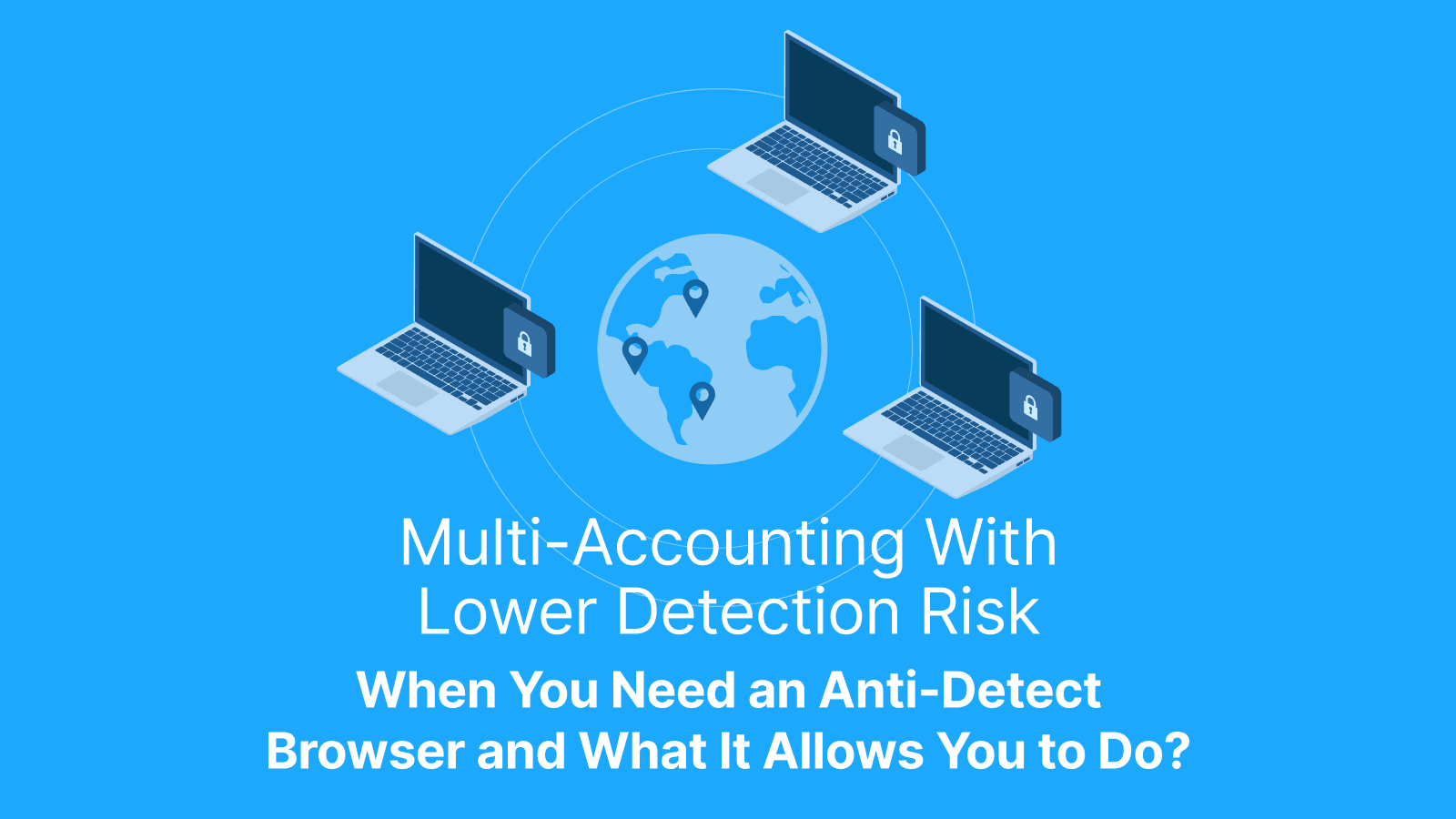
The primary function of an anti-detect browser is comprehensive masking of your digital identity. It becomes relevant when managing multiple accounts (multi-accounting) or working with strict platforms operated by major tech companies.
For multi-account workflows, IP separation alone may not always provide sufficient isolation, especially on stricter platforms. Large platforms can evaluate not only the IP address, but also the browser, operating system, hardware, and other session-level signals. That is why some teams combine proxies with browser profile management tools, virtual environments, or controlled automation frameworks to improve separation between sessions.
The combined set of device, browser, and hardware parameters is called a fingerprint. Without masking the fingerprint, achieving strong account separation and more stable profile separation on strict platforms becomes much harder.
Masking only your IP address is like covering one part of your identity while leaving the rest visible. Platforms can still recognize patterns across other browser and device signals.
There are browser extensions that mask individual parameters, such as User-Agent, language settings, time zone, and system fonts. However, such extensions usually modify only part of the fingerprint.
To avoid raising suspicion on major platforms, the full browser environment needs to look realistic and internally consistent.
In the digital world, that role is performed by an anti-detect browser. It doesn’t just modify isolated parameters. It recreates the entire combination of characteristics that form your fingerprint.

Example of creating a new virtual user in Dolphin Anty: selecting an operating system, device parameters, and other characteristics that websites track.
For every new virtual user you create, the anti-detect browser generates a realistic and internally consistent configuration.
An anti-detect browser provides a different level of identity masking and account separation. It doesn’t just hide your IP address or tweak a few browser settings. It combines multiple parameters in a way that looks natural and consistent with the platform.
This level of profile consistency allows you to:
-
Create multiple accounts on platforms with strict anti-fraud systems.
-
Separate new accounts from previously flagged browser or device environments, which can reduce repeated detection risk.
-
Access services more consistently in workflows where browser-level signals need to remain standardized. However, restrictions tied to IP reputation, proxy detection, or VPN usage still depend primarily on proxy quality and network characteristics.
How to Work With an Anti-Detect Browser Using Dolphin Anty as an Example?
Before getting started, you need to register on the official Dolphin Anty website and download the browser. After installation, log in to your account — and you’re ready to begin.
The foundation of any anti-detect browser is profiles. A browser profile (sometimes simply called a browser or BP) is a separate digital environment with its own IP address, browser characteristics, operating system parameters, device settings, cookies, and plugins. Each profile is designed to behave like an independent browser environment, which can help reduce linkage risk between accounts. However, true separation also depends on IP diversity, behavior patterns, and the overall operational setup.
You can create as many browser profiles as needed. A large number of BP allows you to:
-
Scale digital advertising campaigns.
-
Launch replacement accounts faster after restrictions or bans.
-
Manage review and reputation workflows across multiple profiles.
-
List products on marketplaces from multiple seller accounts.
How to Create a Browser Profile?
You can create a profile using either the “Quick profile” or “Create profile” option.

The most important step during profile creation is adding a proxy and cookies.
You can add a proxy in two ways.
- Manually, by selecting the “New proxy” option and entering the proxy connection details.

- From a saved ports list, if you have previously added proxy ports to the system. In this case, you simply select a proxy from the list and assign it to the profile.

The remaining parameters, including the OS, technical fingerprint settings, and time zone, are generated automatically by the anti-detect browser. You can adjust them manually. However, it’s not recommended unless you understand browser fingerprinting.
How to Manage Browser Profiles?
You’ll see three dots next to each profile. Hovering over them opens the browser’s management menu.

Here are the key options you should know:
-
Edit — modify profile settings. You can change the name, type, operating system, and specific fingerprint parameters. You can also update the proxy through this option.
-
Share profile — send the profile to another Dolphin Anty user.
-
Export / Import — download profile data to your device or upload it back into the system.
-
Cookie Robot — quickly generates cookies inside the browser based on a list of URLs.
-
Copy profile — duplicate a profile. You can keep the core parameters, slightly adjusting the fingerprint.
You can also work with multiple profiles at the same time. Select them with checkboxes.

When managing several profiles simultaneously, you can:
-
Launch, close, or delete them in bulk.
-
Assign proxies in bulk through the profile management panel.
-
Synchronize actions — the synchronizer mirrors your actions across all opened browser profiles.
-
Refresh the fingerprint with one click — useful when you want to continue working within the same ecosystem but with new accounts and proxies.
-
Transfer profiles to other Dolphin Anty users or export them to local storage on your device.
How to Add Proxies?
It’s best to add proxy ports through the dedicated “Proxies” section. From there, you can assign proxies not only when creating a new profile, but also to existing browser profiles — including multiple BP at once.

To add a proxy, click “Add proxy.” First, log in to your Live Proxies dashboard and copy the proxy port details.

Then go back to Dolphin Anty and paste the data into the “Quick Input” field. The system will automatically parse and distribute the proxy details into the correct fields.

If you need to add several proxies at once, use the “Mass addition” option to upload them as a list.

How to Customize the Profile List and Navigation?
The profile list in Dolphin Anty is fully customizable — you can add or remove columns and expand or contract them. To choose which columns to keep and which to remove, click the "Customize columns" gear. Then select the desired columns using checkboxes.


On the right, in the “Columns selected” field, you set the order of columns. To resize a column, hover your cursor over its border above the list and drag it left or right.
Navigation becomes convenient when you actively use statuses, tags, and notes.

You can add them directly in the profile list or while creating a browser profile. Statuses and notes are color-coded, which helps quickly identify different categories of browsers.
Tags, statuses, and notes also make filtering easier. All tags are displayed at the bottom — clicking on a tag will show only the relevant browser profiles. In addition, through the filter section (located near the profile creation buttons), you can filter profiles by users, proxy ports, and folders.
Further reading: How to Scrape Bing Search Results, Ads, News, and Maps With Python in 2026 and What Is a Forward Proxy? Forward vs Reverse Proxy, and What It’s Used For.
Dolphin Anty Features You Should Know Before Getting Started
Dolphin Anty can handle a significant portion of routine work and help speed up your workflow — as long as you’re familiar with the right tools.
Two key features designed to reduce repetitive tasks and improve efficiency are:
-
Scenarios.
-
Synchronizer.
Scenarios
A scenario is a sequence of actions that the browser performs automatically based on your command. To get started, you create a scenario by selecting simple actions and combining them into a structured chain.

Once saved, the scenario can be launched on one or multiple browser profiles through the browser action menu.
Scenarios are commonly used to automate tasks such as:
-
Creating, setting up, and “warming up” accounts;
-
Posting comments and reviews;
-
Filling profiles with products or content;
-
Watching videos and interacting with posts to increase engagement metrics.
Synchronizer
Not every task should be automated through scenarios. For example, launching advertising campaigns is usually better handled manually. However, it can still be scaled efficiently: you perform all actions manually in one browser profile, while those same actions are mirrored across the others.
That’s exactly how the Synchronizer works. First, you select the BP you want to control, then choose a master profile — this is where you perform the manual actions.


When you type a keyword in the master browser, the same action is instantly replicated in the other synchronized profiles.
Key Mistakes When Working With an Anti-Detect Browser
To ensure safe and stable multi-accounting, you should avoid the following mistakes.
Using a Different Operating System Than Your Real One
An anti-detect browser can simulate different operating system settings. However, anti-fraud systems may detect inconsistencies when the selected operating system does not match other fingerprint attributes, such as graphics rendering or system fonts. When creating a BP, it is better to keep the configuration internally consistent and closer to your real environment, even if you choose a different version of the same operating system.
Cutting Costs on Proxies
In multi-accounting, the setup should closely resemble a real user's experience. That applies to proxies as well.
Residential proxies often achieve higher acceptance rates on stricter platforms due to ISP-issued IP ranges. However, performance depends heavily on IP quality, rotation logic, and provider infrastructure.
Important: this does not mean data center proxies are unsuitable. They are simply better suited for less complex tasks and lower-risk workflows.
It is also worth noting that in most multi-accounting workflows, working without proxies is not practical because an anti-detect browser does not replace or mask the IP address on its own.
No Cookies
When you register an account, platforms use cookies as one of the signals to tailor recommendations, search results, and ads to your profile. Some platforms expect gradual account activity patterns. In certain workflows, warming profiles with browsing history or cookies may improve stability, though this depends on the platform and use case.
Therefore, when creating a profile, either upload a prepared cookie list or generate cookies using the Cookie Robot feature. For a more realistic setup, collect cookies from regional websites that match the region of the proxy being used.
Further reading: What Does “Configure Proxy” Mean? How to Configure Proxy on Wi-Fi and iPhone and How to Do Web Scraping in Java: A Complete Tutorial.
Conclusion
You are essentially creating a new digital identity with an anti-detect browser, or, more accurately, multiple identities. This makes multi-accounting more stable and easier to scale.
An anti-detect browser not only masks your digital footprint but also speeds up your workflow and helps build a structured ecosystem of cookies, plugins, and bookmarks for each digital identity.
One advantage of Dolphin Anty is that many of its features can be tested for free on the Free plan. You can download the browser and start using it right away. To receive a discount on your first payment, use the promo code LIVEPROXIES and get 20% off your first dolphin{anty} subscription.