
When using proxy IPs, simply having a working proxy is not always enough. An IP may connect successfully while still having characteristics that affect its suitability for a specific workflow, such as an unexpected location, hosting ASN, poor reputation, or proxy-related flags.
That’s why testing a proxy IP before using it can be a useful step. With the right IP detection tool, you can check key information about an IP and better understand whether it matches your requirements.
Why Test Your Proxy IPs?
A proxy may work correctly from a connectivity perspective, but the characteristics of its IP can still affect how well it fits a specific workflow. Testing helps you verify the details that matter before relying on the proxy for larger tasks.
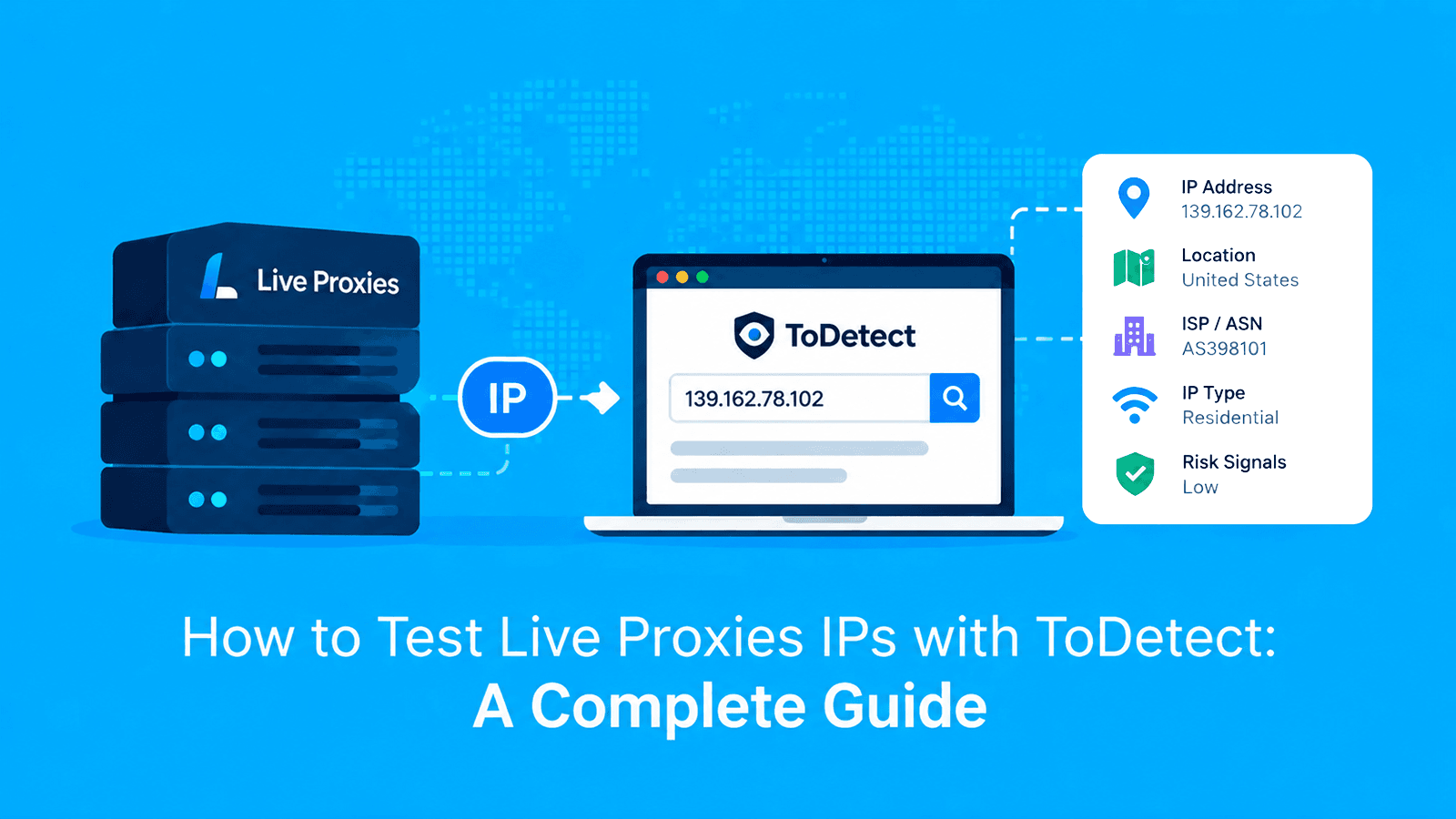
- IP address: Confirm which exit IP is actually visible to websites and make sure your original IP is not exposed.
- Geographic location: Check whether the detected country, region, or city matches the location required for your workflow.
- ISP and ASN: Identify the network and provider behind the IP to better understand where the connection originates.
- IP type: Verify whether the address is classified as residential, mobile, hosting, or another network type.
- Proxy or hosting characteristics: Review available indicators that may show whether the IP is associated with proxy, VPN, hosting, or datacenter infrastructure.
- Risk or reputation signals: Check available reputation indicators for signs that an IP may have a poor history or elevated risk score.
This can help you confirm whether an IP matches your requirements before using it in a larger workflow.
Further reading: What Is a Transparent Proxy? Meaning, Use Cases, and How to Detect It and What is an Anonymous Proxy: Definition, How It Works, Types & Benefits.
What Is ToDetect?
ToDetect is an online tool designed to analyze IP addresses and browser fingerprints.
For proxy users, its IP detection feature provides useful information about a proxy IP, helping you understand its network characteristics and other relevant details.
Instead of relying only on whether a proxy can successfully connect to a website, IP detection gives you a more complete picture of the IP you are using. This can help you identify potential issues and determine whether the IP matches your requirements.

How to Test Live Proxies IPs with ToDetect
ToDetect offers two ways to check a Live Proxies IP, depending on whether the proxy is already connected or you want to inspect a specific IP separately. Direct detection verifies the IP currently used by your connection, while manual detection lets you analyze a known IP without routing traffic through it first.
1. Direct Detection
Direct detection is the easiest option when you are already connected to a Live Proxies proxy. First, get the proxy details you want to test from your Live Proxies account:
- Proxy host or endpoint: Use the connection address provided in your Live Proxies account.
- Port: Enter the port assigned to the proxy connection.
- Username: Use the authentication username provided with the proxy.
- Password: Enter the corresponding password required to authenticate the connection.
Then, configure the Live Proxies proxy in your browser or application and open ToDetect.
ToDetect will automatically detect the IP currently being used by your connection and display the available IP information.
This is useful when you want to quickly check whether your proxy is working and see which IP is being used.
2. Manual Detection
Manual detection allows you to check a specific IP address.
If you already know an exit IP from a previous connection, log, or proxy test, enter it into the ToDetect detection field to inspect its network and reputation data without reconnecting through that IP.

This is useful when you want to analyze a particular IP or compare different proxy IPs.
How Can Live Proxies Make IP Testing More Consistent?
Live Proxies uses private IP allocation for B2C plans, reducing overlap with other customers and giving users more consistent control over the IPs assigned to their account. Its rotating residential proxies support sticky sessions up to 24 hours, allowing teams to keep the same exit IP long enough to inspect its location, ISP, ASN, IP type, and other signals consistently.
For connectivity checks, Live Proxies also provides a proxy tester for checking whether a proxy is working, its response time, exit IP, location, ISP, and connection errors. ToDetect can then be used for a deeper review of IP classification, ASN, quality, and reputation signals.
What Should You Check?
After detecting a Live Proxies exit IP, review its network, classification, and reputation data together rather than relying on a single field. Start with the exit IP and location, then check the ISP, ASN, IP type, proxy or datacenter indicators, and available quality or abuse signals.
1. IP Address
Confirm that ToDetect displays the exit IP assigned to the active proxy session rather than your original IP. If your original address is still visible, review the proxy configuration before continuing with the test.
2. Location
Check whether the detected country, region, or city matches the location selected for the proxy session. Because IP geolocation depends on third-party databases, city-level results can differ between providers or update at different times.
3. ISP and ASN
Review the ISP, ASN, and ASN organization to understand which network owns or routes the IP. These fields can help confirm whether the address has the network characteristics expected from the proxy type you selected.
4. IP Type and Risk Signals
Check whether the IP is classified as residential, mobile, hosting, datacenter, or another network type. Also review available proxy, abuse, and quality indicators.
Because detection databases use different datasets and classification methods, one flag should not be treated as definitive on its own.
What If the Results Are Unexpected?
If the detected IP is not what you expected, first check your proxy configuration. A few basic settings can explain most connection mismatches:
- Proxy address and port: Confirm that both values match the connection details provided in your proxy account.
- Proxy connection: Make sure your browser or application is actually routing traffic through the proxy.
- Other network tools: Check whether another VPN, proxy, or network configuration is interfering with the connection.
If the IP is correct but the location or network classification looks different, remember that IP databases can vary in accuracy and may update their information over time.
What Are the Best Practices for Testing Proxy IPs?
A reliable proxy testing workflow should help you catch configuration issues early and compare IP characteristics consistently. The goal is to verify both the connection and the network signals before using an IP in a larger task.
- Save the exit IP with each test: Keep the tested address alongside its location, ASN, and other results so you can compare changes later.
- Keep the session stable: Use a sticky session while checking the same IP so rotation does not change the result halfway through the test.
- Compare multiple signals: Review location, ASN, IP type, proxy indicators, and reputation together instead of treating one field as definitive.
- Retest after rotation: Run another check when the session receives a new exit IP.
- Compare unexpected classifications: If one database reports an unusual location or IP type, compare it with other available detection sources before concluding.
Further reading: Enhancing Proxy Workflows with IP Intelligence (ASN, Carrier, VPN/Proxy Detection) and What Is Proxy Testing? Best Tools and How to Test Proxies Online.
Conclusion
Testing a proxy IP before use can help you identify configuration issues and better understand its network characteristics.
With ToDetect, you can quickly check key IP information and determine whether the proxy meets your requirements before putting it into your workflow.